How clients get in
Clients never register and never get a practice login. Each client reaches the portal through a private link their accountant sends, and each link is for one entity. A client with a personal return and a family trust gets a link for each, and sees only what belongs to the entity in front of them.
Links are short-lived. When one expires, send a new one from the client's page. The previous access keeps working until the email carrying its replacement has been accepted for delivery, so a client is not locked out if an email is delayed.
1. Send the invitation
Open the client group, find Client portal access, choose the entity and send the invitation. It goes to the email address on the client record, so check that first. The client opens the link and lands in the portal for that entity, with sections for their returns, shared documents, messages and tax organisers.
2. The practice side of the portal
Client Portal in the practice menu is where you run all of this from. It shows how many returns are active, how many are awaiting a signature and how many are lodged, lists the returns awaiting signature, and has a form for each kind of request.
3. Send requests
Document requests
Choose the client, give the request a title and a due date, list the items you need, and add instructions. The request appears in the client's portal and in the practice's list of outstanding requests until it is complete.
Organisers
An organiser is a set of questions for the client to answer, with notes and a due date. Use it for the questions that decide what a return needs, such as whether the client sold property or shares, received government payments, worked from home, had private health insurance or a study loan, or wants a new refund account.
Tax packs
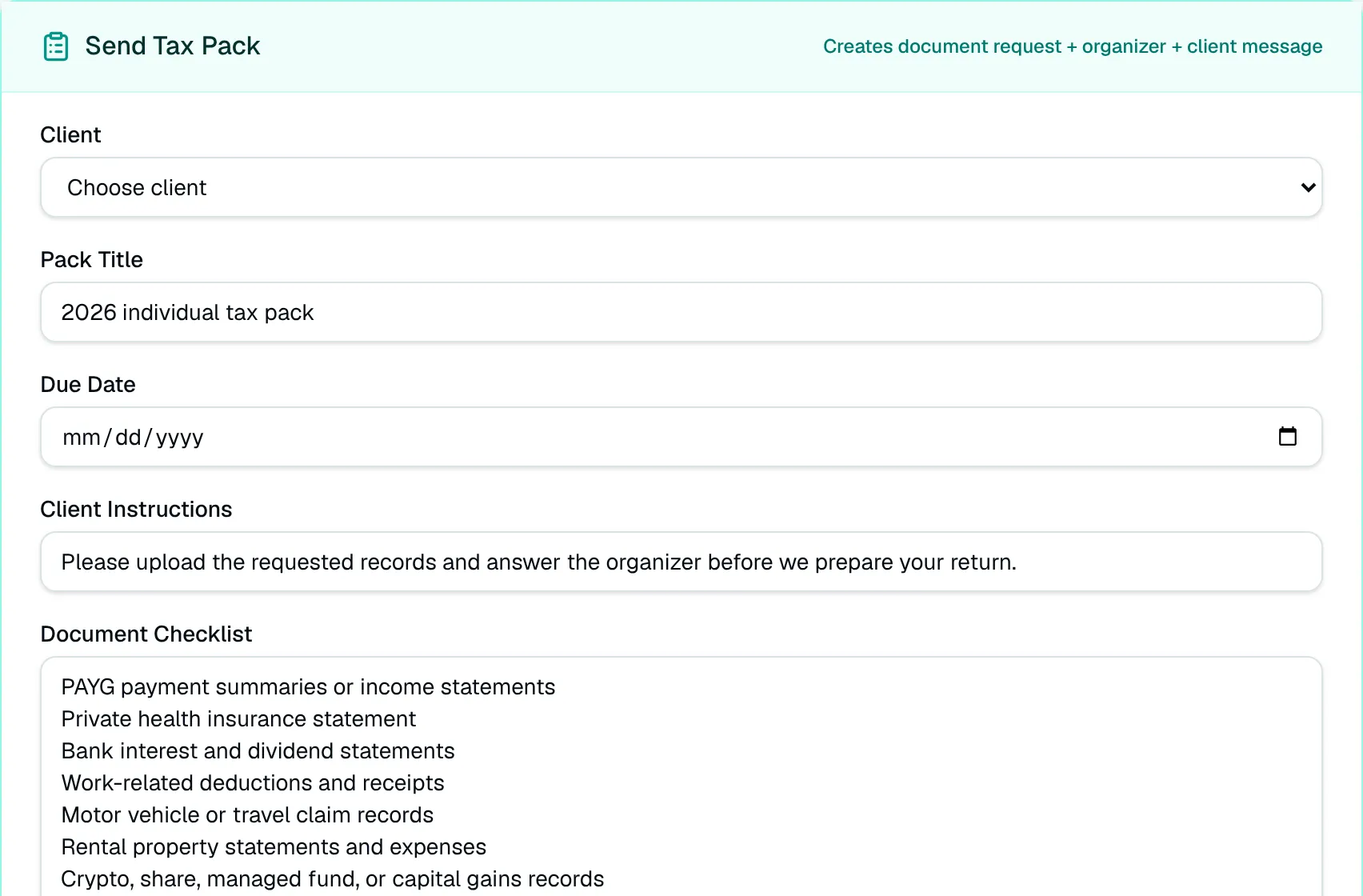
A tax pack sends a document request, an organiser and a message in one step. It is built for the usual annual individual collection: give the pack a title, a due date and instructions, choose the document checklist and organiser questions, and send.
What the client sees
When the client opens their link, the portal has four sections. Your Returns lists the returns you have shared with them. Shared Documents holds the documents you have shared. Messages holds each conversation. Tax Organizers lists the questions you have sent, with their due dates.
The client never sees another entity, another client, your notes, your diagnostics or anything you have not sent them. Ask clients not to forward their invitation email, and send a fresh link if they need one on another device.
4. Messages
Message Client starts a conversation with a subject. The client reads it in the portal and can reply there, and replies arrive in the practice's Messages page. Keeping questions in the portal rather than email means the history stays with the client, and nothing sensitive sits in an inbox.
5. Documents
Documents you share with a client appear under Shared Documents in their portal, where they can download them. Clients can attach files to a request, and staff can upload documents from the practice side; uploaded files are attached to that client entity's record.
6. Signatures through the portal
When a return is approved, send the declaration from the return's Sign tab. The client receives a secure link by email and confirms their identity with a one-time code before signing. The signature is sealed against the approved return, and the portal shows which returns are waiting on the client. The review and declaration guide explains what happens if the return changes after signing.
Good practice
- Send a tax pack rather than one long email, so each item has a due date against the right client.
- Use organiser questions to find out what a return needs before asking for documents.
- Write questions and instructions in plain words: the client sees exactly what you type, with no other context.
- Set due dates that leave time to follow up; the client sees each request's due date in the portal.
- Check the outstanding requests list each week; it shows what each client still owes you.
- Tell clients that the portal link expires, and that they can ask you for a new one at any time.