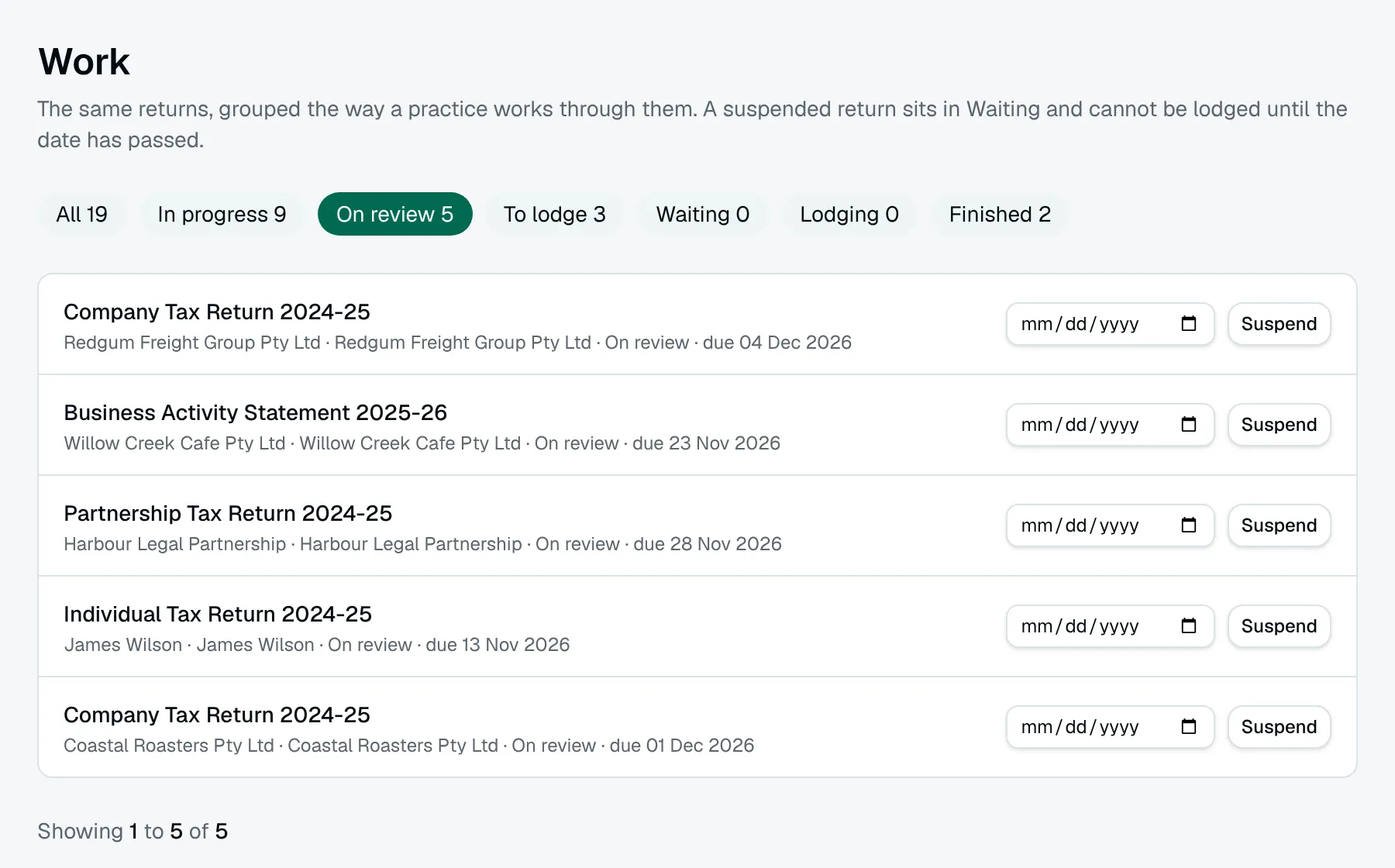
Seeing the practice at a glance
The dashboard shows totals for active returns, returns pending review and overdue work, then a short list of the most useful next actions: clear an overdue return, review a waiting one, or lodge one that has been approved. The work list groups every return by where it is: in progress, on review, to lodge, waiting, lodging or finished. A return can be suspended until a date, and it cannot be lodged while it waits.
Deadlines groups returns into overdue, due within 14 days and upcoming, with the assigned person on each, and keeps a reference list of common ATO due dates beside them. Reports summarise returns by status and type, overdue returns, lodgements, staff workload and client groups.
Tasks, time and billing
- Tasks with status, priority, an assignee, a due date and the client they relate to.
- Time entries against a client, marked billable or not.
- Capacity planning across the team's hours.
- Invoices you create, send, reconcile against a payment or void, plus recurring schedules and payment reminders.
- Automation rules for repeated workflow steps.
Invoicing and reports
Invoices are created against a client with payment terms and a message, and sent to the client's email address; the invoice records whether sending succeeded. When a payment arrives, record it and the invoice is reconciled. An invoice can be voided, recurring schedules generate invoices on a timetable, and payment reminders follow up unpaid ones. Staff rates set in Settings price billable time.
Reports cover returns by status and by type, overdue returns, a lodgement summary, staff workload and a summary of each client group, so a principal can see where the practice's time is going.
Clients, entities and access
Clients are organised as client groups with a code, contact details and one or more entities: individuals, companies, trusts, partnerships, SMSFs and sole traders. Groups can be gathered into sets and linked by relationships such as director, shareholder, spouse or partner. A client marked private is visible only to the staff assigned to it and to people allowed to delete clients. Each group keeps its notes, documents and a log of interactions.
Access follows roles. A new practice starts with Admin, Manager, Preparer, Reviewer and ReadOnly, and an administrator can create roles with a different set of permissions. Every staff member signs in with an authenticator app, and important actions are recorded in the audit log. The practice set-up guide walks through the first day.
Practice management: common questions
Can I bring my existing client list across?
Yes. Clients can be imported from a CSV file with your own column mapping. See the import guide for the details.
Does Cassandra Tax take payments for invoices?
No. Invoices are created and sent from the practice, and payments received elsewhere are recorded and reconciled against them.
Can a reviewer be stopped from editing returns?
Yes. Permissions are set per role, and the starting Reviewer role can view, review and approve returns without the preparer's edit rights.