Where review sits in a return's life
A return moves through Draft, In Progress, Ready for Review, In Review, Approved, Lodging and Lodged, with Amended for a return changed after lodgement. The preparer moves a complete return to review with Begin Review; the reviewer either approves it or uses Return to Preparer with comments. The work list and the dashboard show every return waiting on a reviewer.
1. Assign a reviewer
On the return's Review tab, choose a reviewer from the practice's staff and save. The reviewer needs permission to review and approve returns; the starting Reviewer and Manager roles have it. The person assigned as the return's preparer cannot approve it, whatever their role.
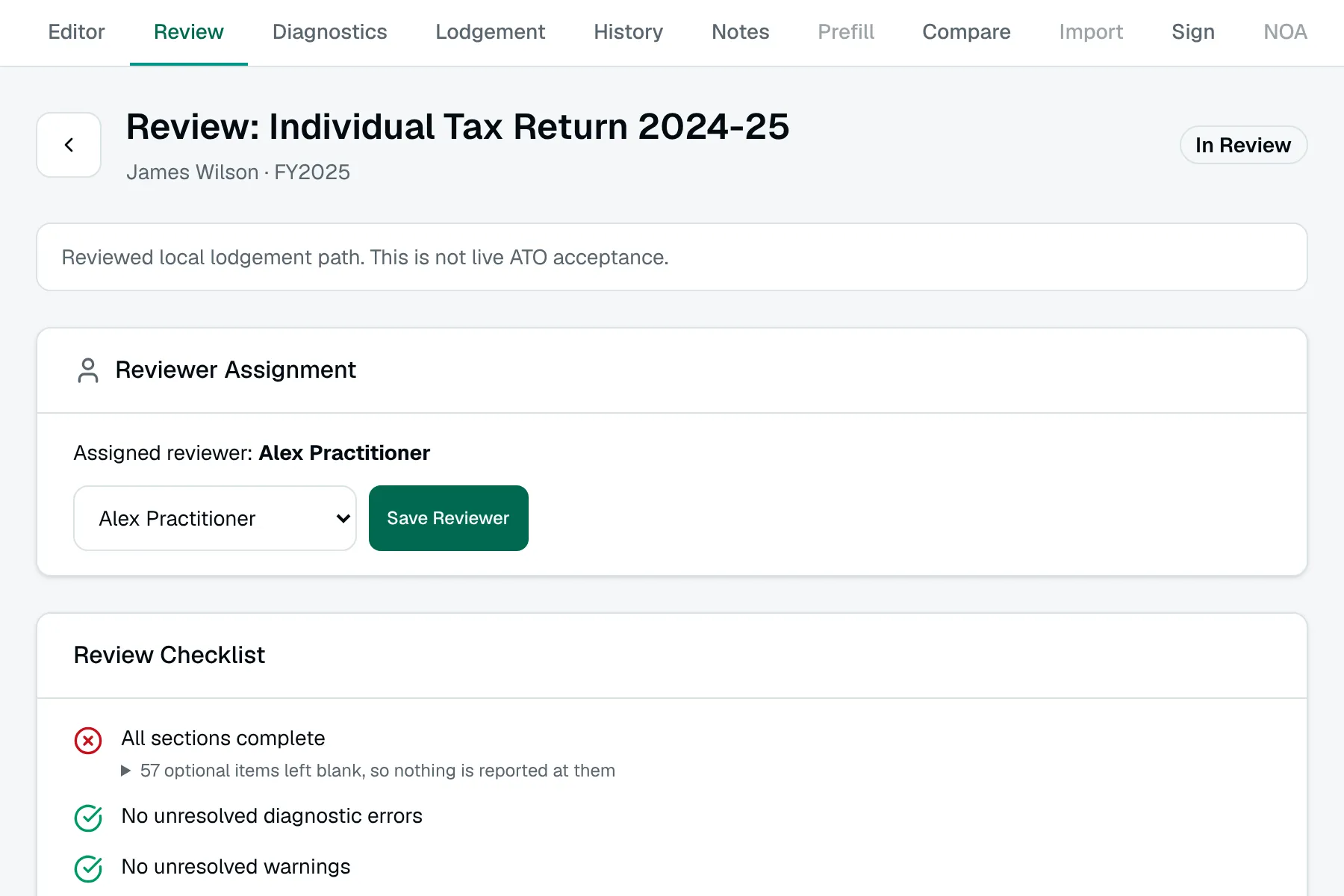
2. Work through the checklist
The review checklist answers four questions: are all sections complete, how many optional items were left blank, are there unresolved diagnostic errors, and are there unresolved warnings. Optional items left blank are counted so you can see them; leaving an optional item blank means nothing is reported at it.
Below the checklist, the page summarises the return item by item, with totals for income, deductions, offsets and the tax calculation. For individual returns there is also an indicative tax estimate. It says what it includes and what it leaves out, and the ATO's assessment remains the authority.
The pre-lodgement review panel adds advisory checks: completeness, and a risk score with the reasons behind it. It is deterministic and rules-based. It is not generative AI, and it is advisory only: diagnostics, validation and your approval remain separate steps.
3. Approve or reject
Add your comments and choose Approve or Reject. Approval is refused if any section is incomplete or a diagnostic error is unresolved, and the reason is shown on the page.
An approval records a fingerprint of the exact return data you approved. If anyone changes the return afterwards, that fingerprint no longer matches, the approval stops counting, and the return needs to be reviewed again. Every decision is kept in the review history with who made it and when, and the return's History tab records the field changes in between.
Rejecting a return sends it back to the preparer with your comments. The preparer sees them on the Review tab, makes the changes, and moves the return to review again. Use the Notes tab for questions that should stay with the return after it is approved, such as why a deduction was accepted.
4. Send the declaration to the client
Once the return is approved, open its Sign tab. The signature request is blocked until then, with a message saying so. Enter the signer's name and email address and, if you like, a short message. The signature package lists what the client will see: a PDF generated from the return, plus any return documents attached to it.
With the built-in signing, Cassandra Tax emails the client a secure link. Before they can sign, the client confirms their identity with a one-time code sent to the same email address. Where DocuSeal or Zoho Sign is set up for the service, you can choose it as the provider instead and the client signs through that service.
The declaration is sealed against the same fingerprint as the approval. If the return changes after the client signs, the declaration no longer matches the return, and both approval and declaration need to be given again.
5. Track signature requests
- The Sign tab lists the requests for that return with their status.
- The E-signatures page lists every request across the practice as pending, signed or declined.
- The practice side of the client portal lists returns awaiting signature.
If a client declines, the request is marked declined. Talk to the client, make any correction through review, and send a new request.
After approval and declaration
An approved return with a sealed declaration still has to pass the lodgement checklist, including the client's ATO authority and the practice's agent details. The lodgement readiness guide explains each item and where Cassandra Tax stops today.